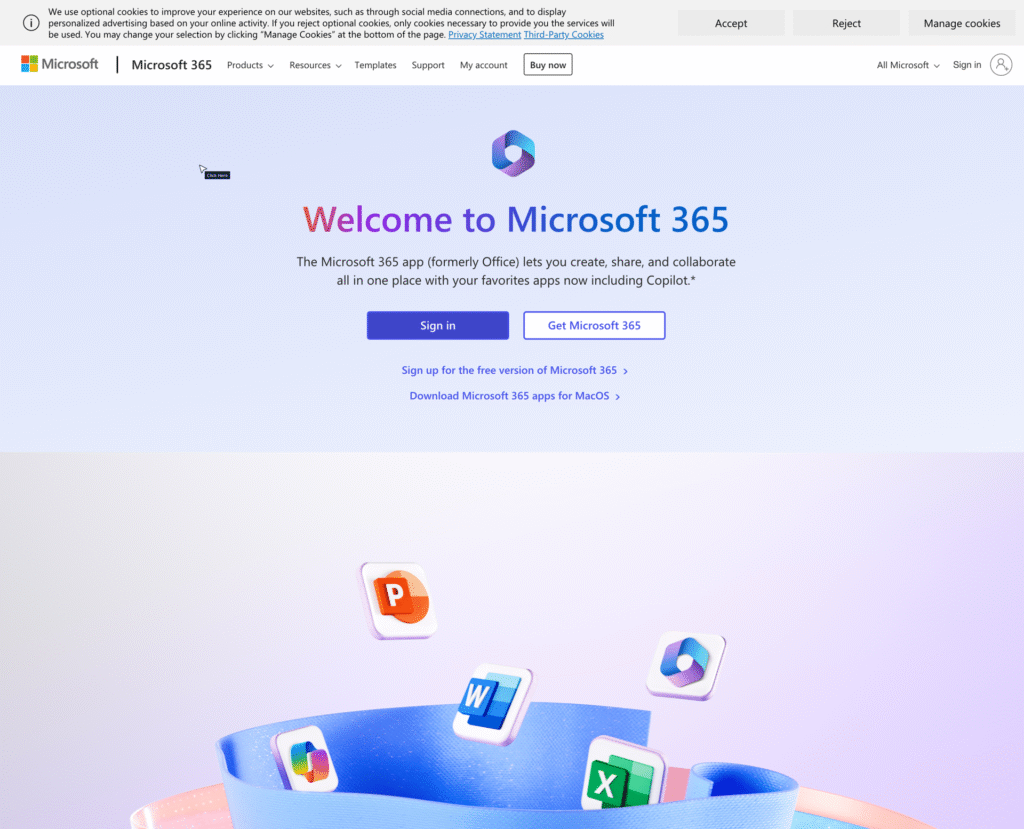
Open your web browser then type www.office.com
Click on “Sign in”
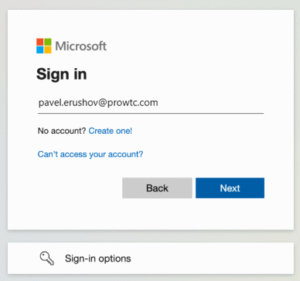
Type the giving username “name.soname@prowtc.com“.
Click on “Next“
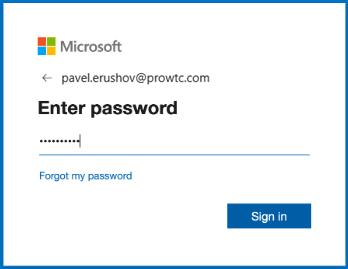
To type your temporary password that you have got from manager (or IT).
Click on “Sign in”
Click on “Next“
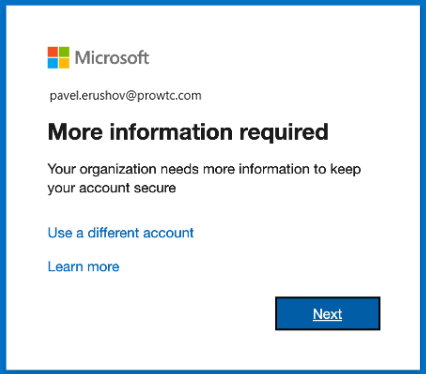
Click on “Next” untill you reached QR
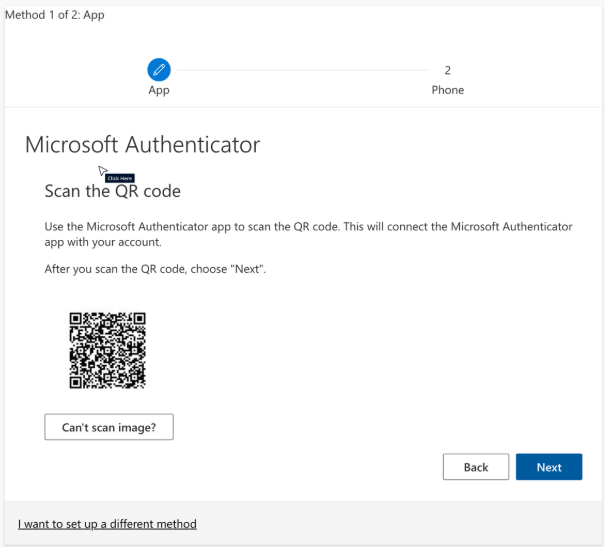
Install Microsoft Authenticator to your smartphone.
For Android link to Microsoft Authenticator – Apps on Google Play or scan QR
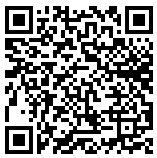
For iPhone link to Microsoft Authenticator or scan QR

Click on “Next“
At Smartphone after installation complete open Microsoft Authenticator and tap + (plus) at right up corner.
Chose to add “Work or school account” and select “Scan QR code“
On your smart phone tap on Scan QR code to scan the code shown on computer.
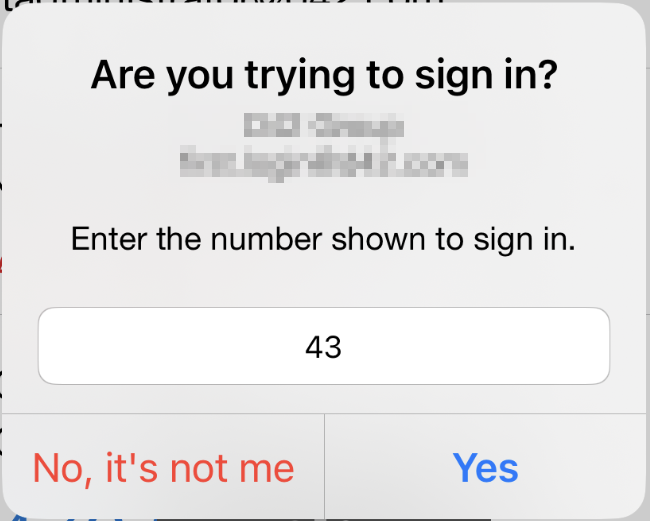
After successfully scanning the code on your phone, you will notice your new account in the account list at phone application.
Click on “Next” shown on computer web browser.
When notification approved, Click on “Next“
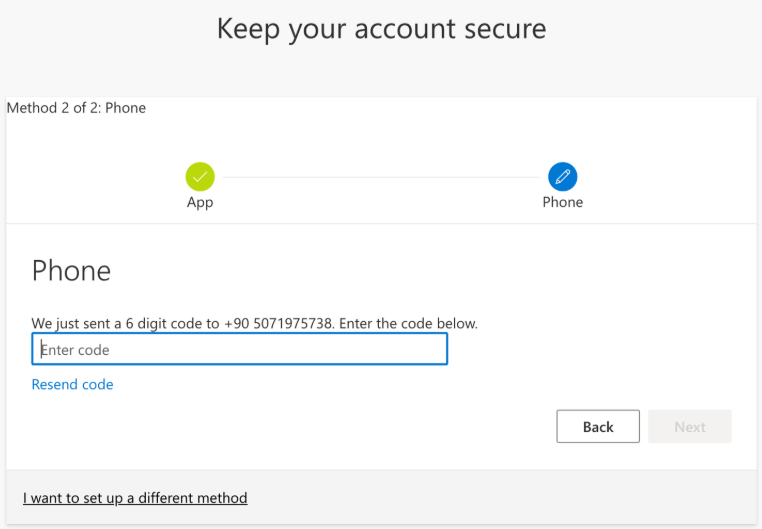
Set second method autenticating by phone number.
Choose your country from the list and type prone number to right field. Click on “Next“
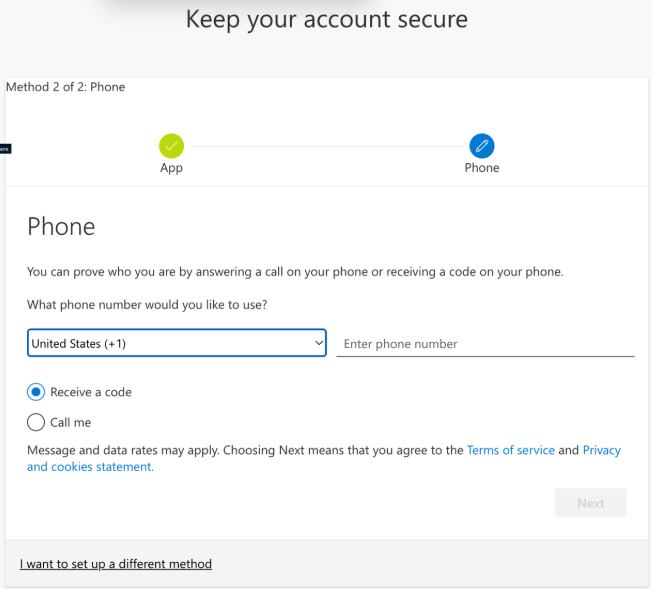
You will receive SMS with code in it. Please make sure the phone number you typed is working and you can receive SMS messages on it.
Type “****” the code you have received on your phone.
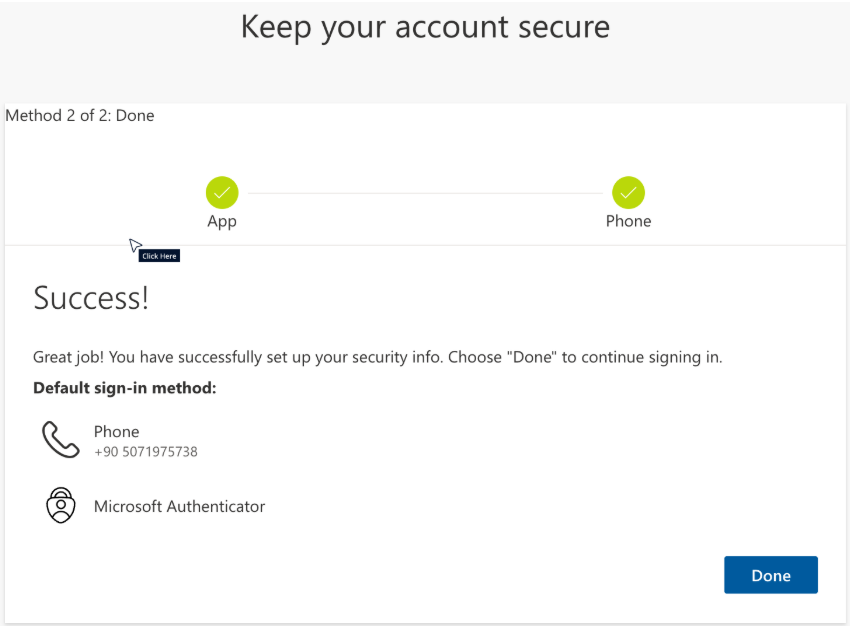
Click on “Next” two times.
Click on “Done“
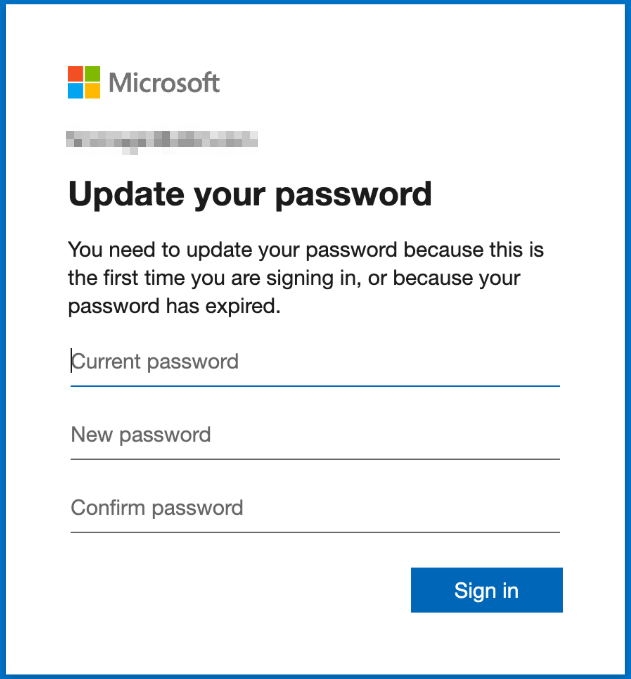
Update your password to permanent.
To the field Current password type the password that you used above.
To the field New password type the password that you will use permanently.
Repeate permanent password to field Confirm password.
⚠For better secure use password with:
– width more then 12 symbols
– contains the all of this: small letters, capital letters, numbers, symbols. (exmpl, not for using %84RdWcbp@5fcf)
Click “Sign In”
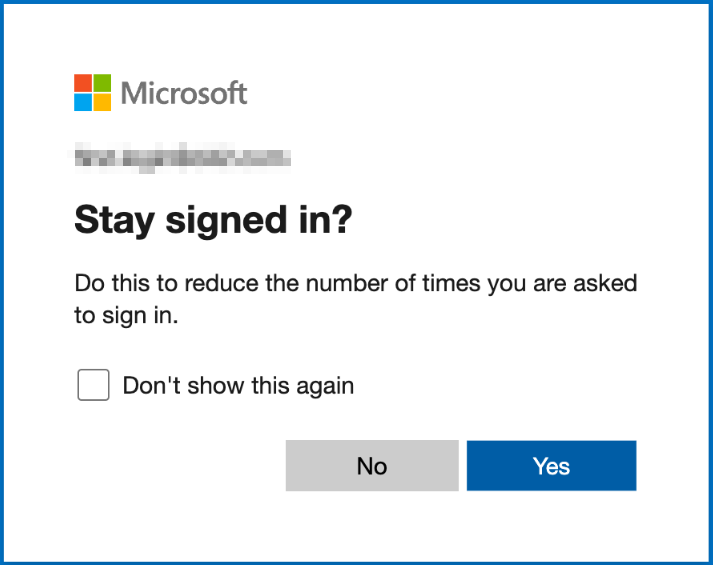
If you prefer to stay signed in, click “Yes“
Now you will be able to see your main page at Microsoft 365
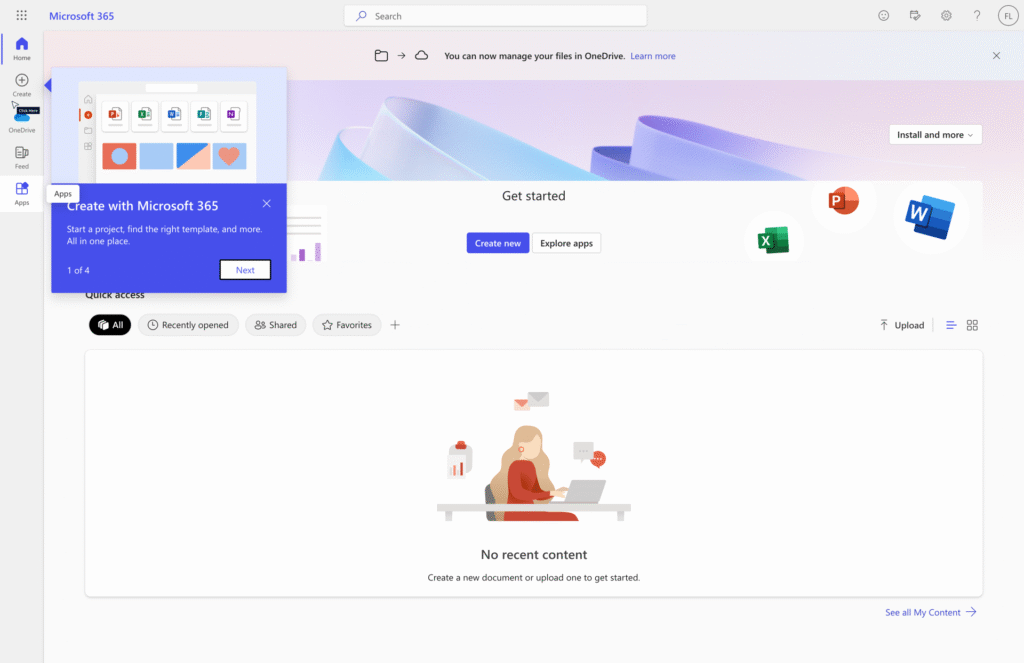
22- On the left pane Click on Apps then Click on “Outlook” icon
New tab will open with your Outlook web page.
Select the icon Apps on the left menu to start using Office web-app.
Or use this links:
https://outlook.office.com/mail/
https://teams.microsoft.com/v2
Thanks for following this tutorial.